
Overview
Name: Executive Windows & Construction Database
Genre: Database
Roles: Lead Programmer
Project Type: Professional
Project Duration: 1 year+
Software: Visual Studio 2022 Community
Language: Visual Basic .NET

This is a Visual Basic .net database system used to store customer, contract and service call data for Executive Windows & Construction (EW&C). All customer, contract and service call data is stored in a relational flat-file database using 5 .dat files.
Data Entry Forms
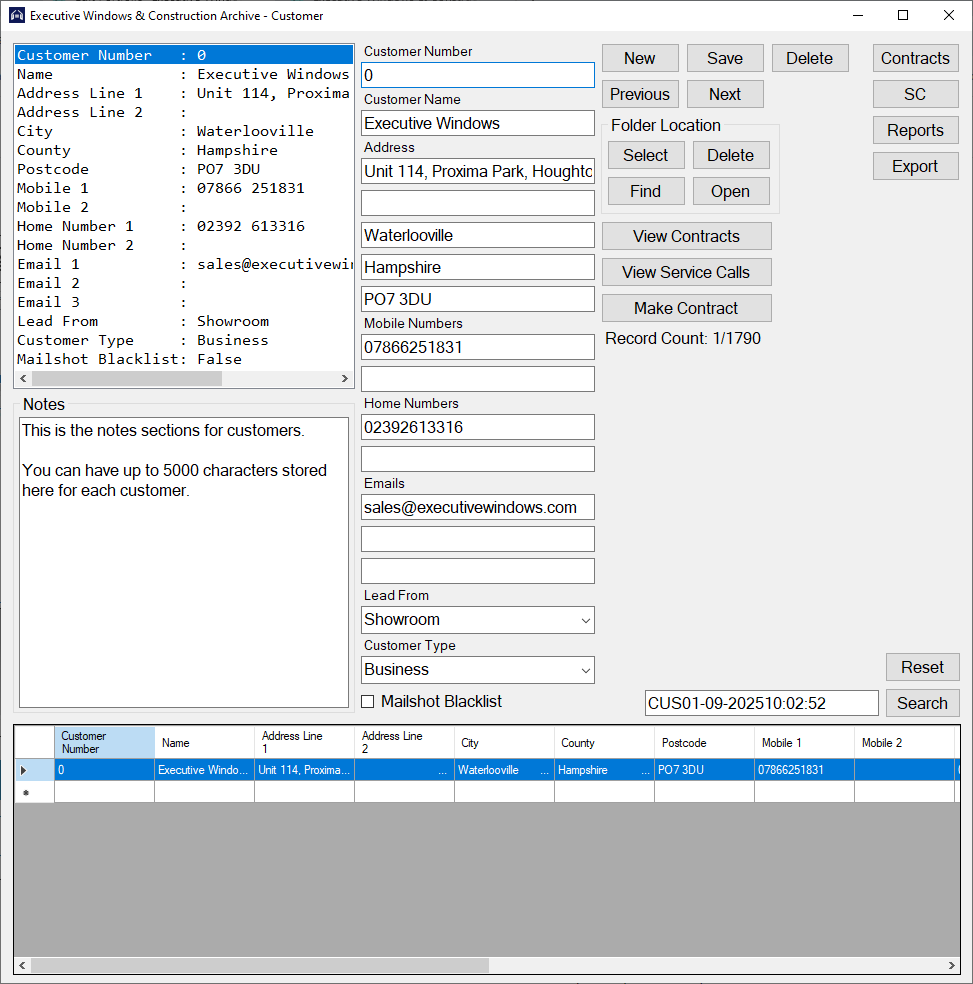
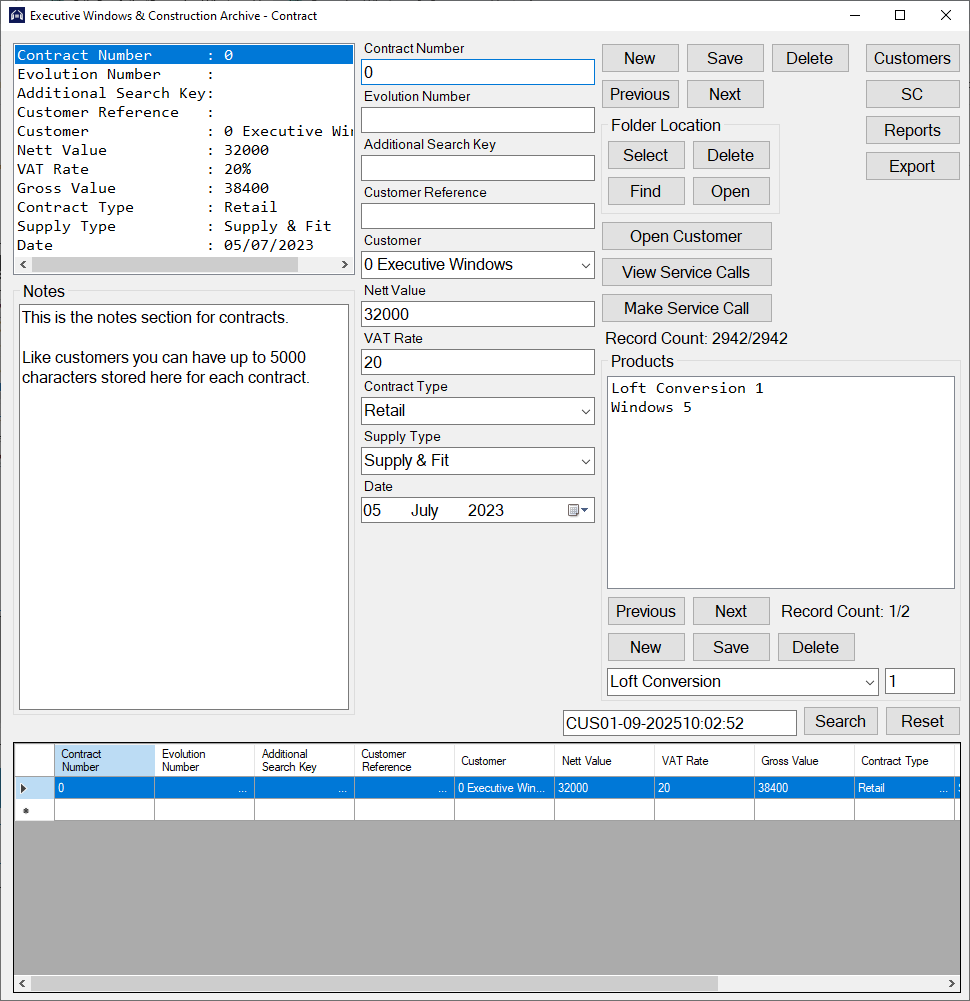
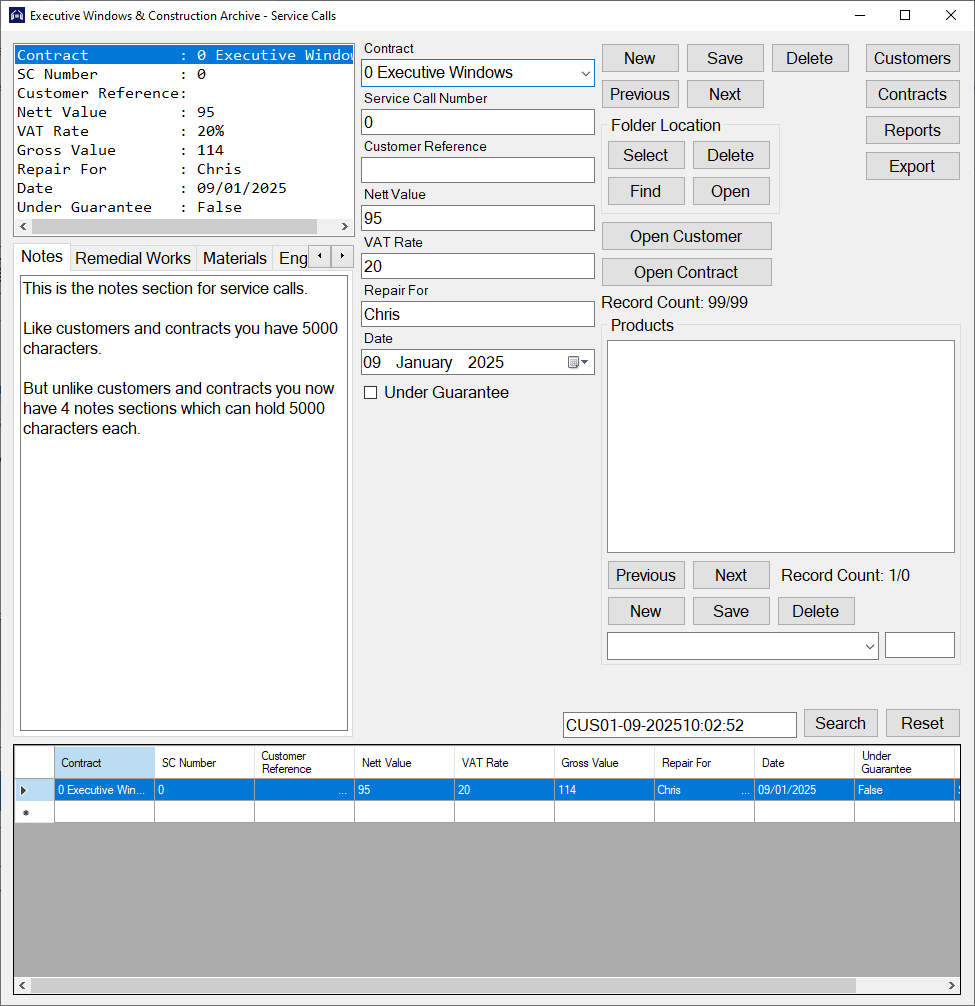
You can easily add, edit or delete records using the data entry forms.
Each field has a personalised data entry control depending on its needs. For example for Customer Type on the Customer record you have a drop down list to show you the limited selection you can pick from. Where as Customer Name is a bit more open so you have a text box where you can write up to 100 characters.
Each record can easily be linked to a folder with the Select button in the Folder Location section. This feature was added so that EW&C could link this database system to their already existing folder system which stores documents related to each customer and contract. The Find button tries to find the folder for you using the information that you’ve saved.
For contracts and service calls (SC) there is an addition section for data entry, the product system. The product system works the same as everything else with New, Save, Delete, Previous and Next buttons. But before you can start adding products, your contract or SC needs to be saved as products will automatically link to the currently opened contract or SC record. When you change what contract or SC you’re looking at the products will automatically find the products for the currently viewed record and display them.
At the bottom of each data entry form is a data view table (DVT) which will display your search results or all the records in the file. You can double click each record on the DVT and it will open the record.
Reports Form
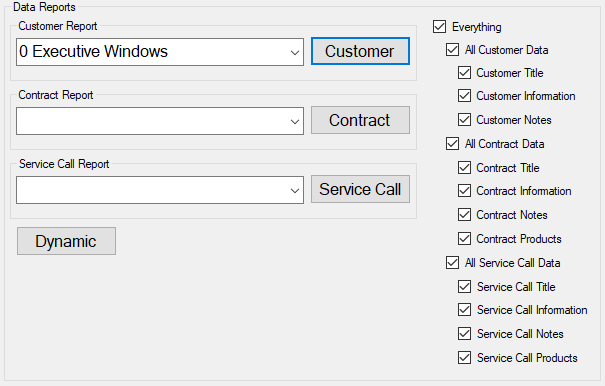
Data Reports
Data reports can be created showing the selected information for a chosen customer, contract or service call.
The Dynamic button will open up the dynamic search form where you will be able to create a search statement to apply to the customer file. The Dynamic Search Report can show details about all valid customers and their contracts and service calls.
Customising Your Report
Customer Title– Customer Number & Name
Customer Information– Address, Phone Numbers, Emails, Lead, Type and Mailshot Blacklist Status
Customer Notes– Customer Notes
Contract Title– Contract Number and Customer Reference
Contract Information– Evolution Number, Additional Search Key, Customer Reference, Nett, VAT, Gross, Contract Type, Supply Type and Date
Contract Notes– Contract Notes
Contract Products– Contract Products
Service Call Title– Service Call Number and Customer Reference
Service Call Information– Customer Reference, Nett, VAT, Gross, Repair For, Date and Under Guarantee
Service Call Notes– Service Call Notes, Remedial Works, Materials and Engineer Report
Service Call Products– Service Call Products
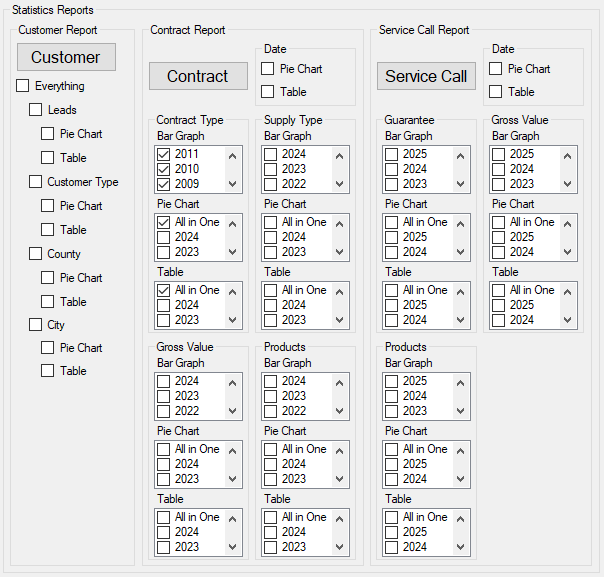
Statistics Reports
Statistic reports can be created showing selected statistics about customers, contracts and service calls. Data can be presented as a table, pie chart or bar graph.
Customising Your Report
Table– Will produce a table with all the statistics of the chosen data. Selected years will be presented in tables separately. (All in One will make a table with all the data in the file)
Pie Chart– Will produce a pie chart of the statistic of the chosen data. Selected years will be presented in pie charts separately. (All in One will make a pie chart with all the data in the file)
Bar Graph– Selected years will be presented in a bar graph together.
Previews & Printing
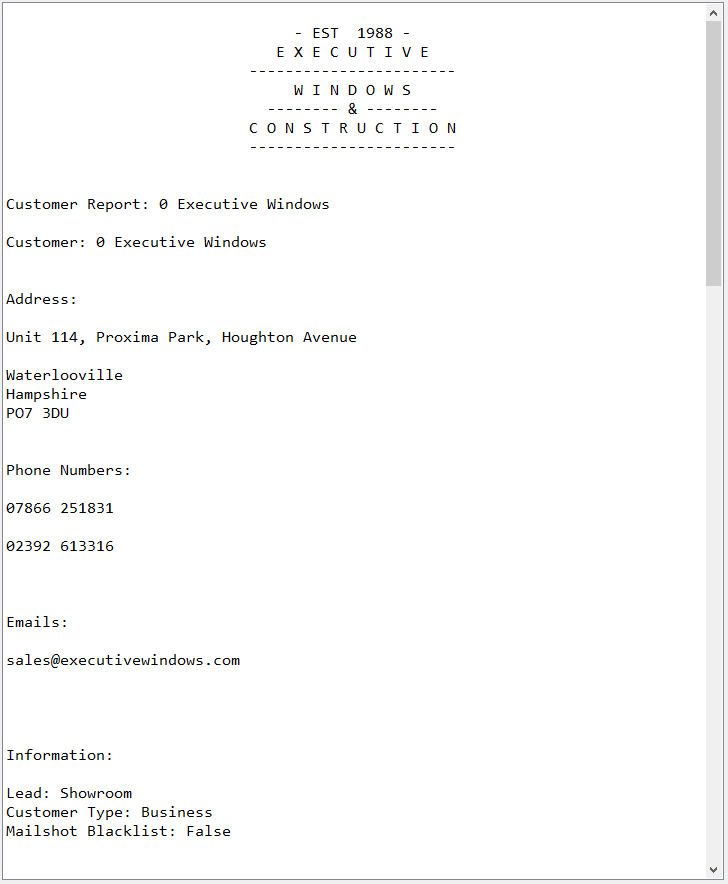
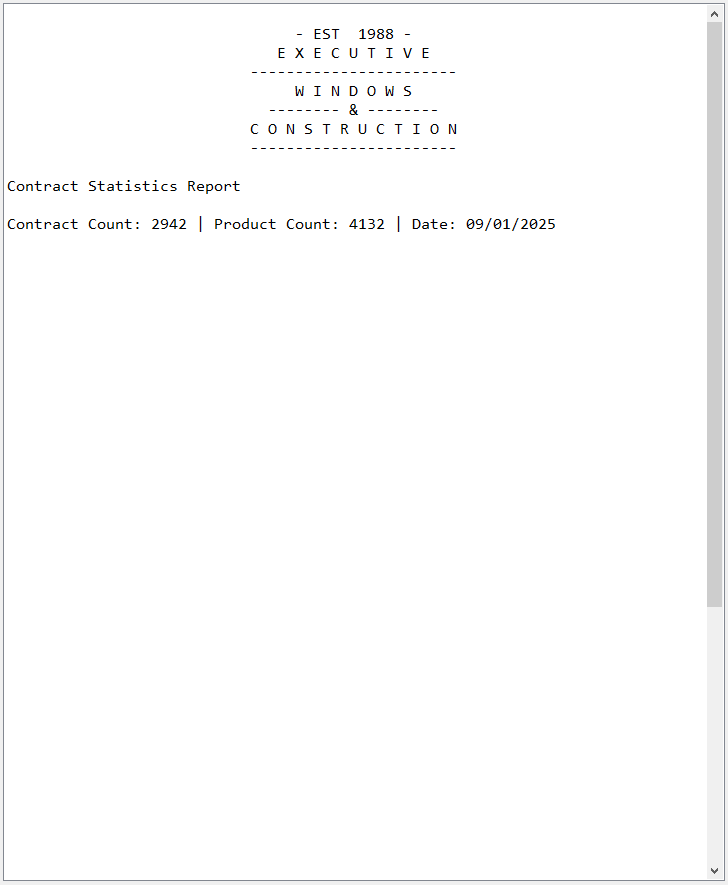
All reports have a basic text only preview that will be displayed in the program (left). All reports can also be printed to PDF or straight to paper with images (right).
Export
Backups
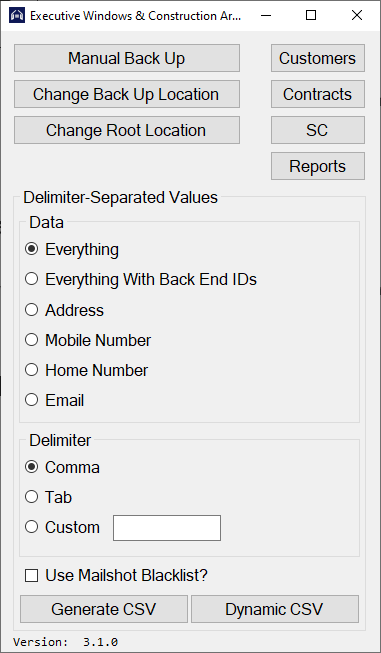
Whenever you close the program will ask if you want to create a back up. You can also create a backup in the export form.
Backups have a default save location which can be changed in the export form or when you’re creating a backup. When making a backup you can choose not to back up in the default location and select a different location.
Change Root Location– This allows you to change where the program looks for the customer folder.
CSV Exports
You can export data into a CSV to import the data into another program, use for addressing labels or anything else. Like reports you can customise your CSV export.
Customising Your CSV Export
Everything– Everything. All customers, contracts, service calls, products and service call products. But without the programs back-end IDs.
Everything With Back End IDs– Everything plus the
programs back-end IDs.
Address– Customer Name, Address Line 1, Address Line 2, City, County and Postcode.
Mobile Number– Mobile Number 1 & 2.
Home Number– Home Number 1 & 2.
Email– Email 1, 2 & 3.
Delimiter is the character that will separate the data.
Comma is default and should work with all programs but if not, you can change it to tab or a custom delimiter. (NOT all custom delimiters will work)
Use Mailshot Blacklist– This is for Generate CSV only while generating Address, Mobile Number, Home Number or Email CSVs. It will use the mailshot blacklist to remove customers.
Generate CSV– Will generate a CSV with all data or all customers not on the mailshot blacklist if the option is checked.
Dynamic CSV– Will open up the dynamic search form and allow you to create a search statement. It will then create a CSV for only valid customers. (Only works with Address, Mobile Number, Home Number and Email)
Dynamic Search
Stage 1
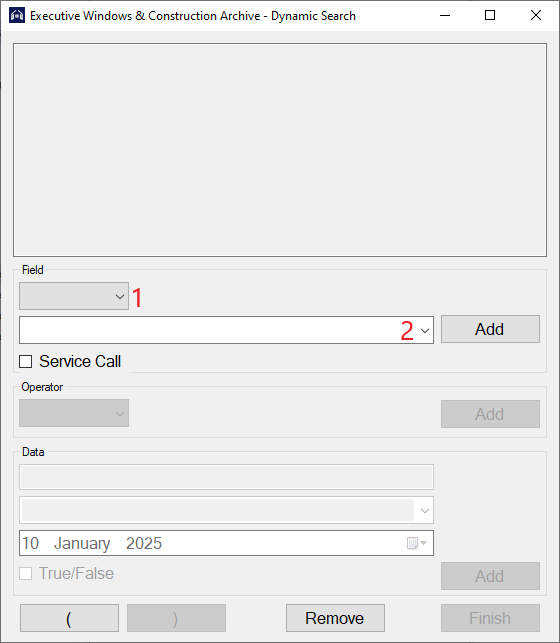
Stage 1 is where you can add the field you would like to search for. Box 1 allows you to switch between Other and Products for Box 2. In Box 2 is where you select which field to search (e.g. Customer Name or Windows). The Service Call check box is for when Products is selected to allow you to choose between Contract Products or Service Call Products. The Add button next to Box 2 will add your selected field to the search statement which is displayed in the box at the top of the form. You can also add an open bracket at this stage. For this example, we will select Postcode.
Stage 2
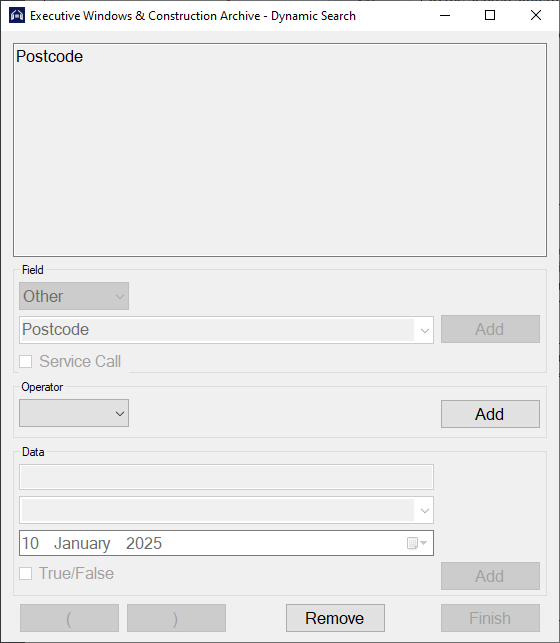
Stage 2 is where you can add the comparison operator you would like to use to compare.
Depending on what field you selected different comparison operators will be available in the box. The possible comparison operators at Stage 2 can be: equal =, not equal ≠, more than > and less than <. For this example, only equal = and not equal ≠ are available as a postcode can’t be more than or less than. We will select equal =.
Stage 3
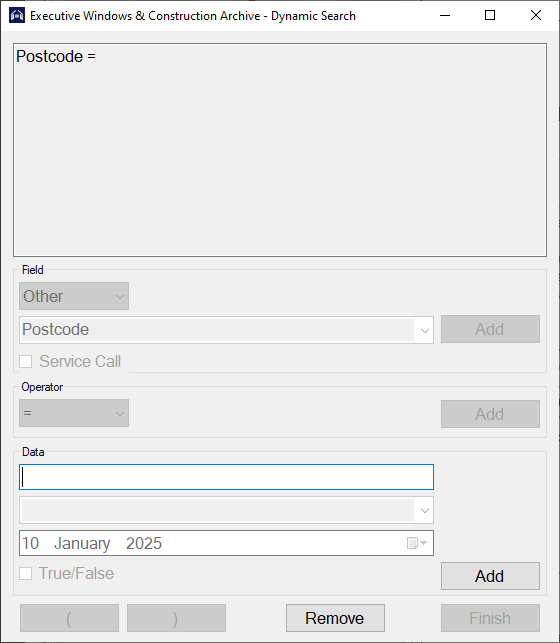
Stage 3 is where you add your data. There are 4 possible controls you can use to enter data but only one will be available at a time depending on what field you selected. At the top you have a text box which allows you to type whatever you want unless it needs a numerical value (Don’t worry about capitalization). Below that you have a combo box which allows you to select between fixed options for things like lead or contract type. Below that you have a date picker for dates. Below that you have a check box for true or false fields like under guarantee. Remember this is comparing the data to how it is stored so for phone number you will need to type the phone number with no space (E.g. 02392613316). For this example, we will type in the text box ‘po7 3du’.
Stage 4
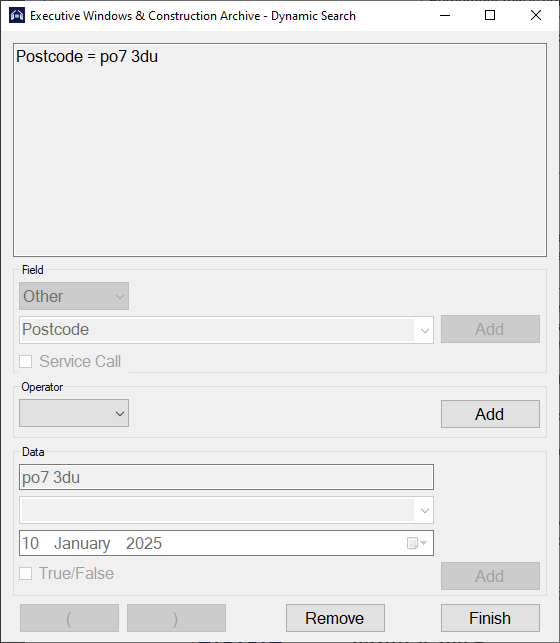
Stage 4 is where you can either finish or continue your statement. You can add a Boolean operator to continue the statement. (Same place you added the comparison operator) The possible Boolean operators are:
And– The comparisons either side of the ‘and’ must both be true to make the ‘and’ true.
Or– Either or both comparisons can be true for the ‘or’ to be true.
You can also add a closed bracket if you have any open brackets. You can also finish your statement. If you finish your statement with open brackets not closed, then the program will close them for you at the end of your statement. For this example, we will finish.
You can press remove at anytime it will remove the last thing added and put you back a stage if needed.
Once you press Finish the program uses the shunting yard algorithm to convert your statement into reverse polish notation (RPN) so the program can read it. The program then reads the RPN statement and applies the statement, using Boolean algebra, to all the customers in the file. It then passes back a list of all the valid customers to either be created into a report or CSV export.
Working Files
When the program starts the 5 .dat files that store all the data are copied into the current user’s AppData folder. These copied local files (working files) are used by the program. When the program closes successfully it overwrites the original data files with the copied local files. This is to reduce the chance of data corruption when an error occurs and speeds up the program as it reduces data transfer between the user and server.
Features & Achievements
- Relational flat-file database with 5 files
- Data entry
- Data validation
- Folder linking and automatic searching
- Automatic record numbering (E.g. Customer Number, Contract Number & SC Number)
- Binary searches
- Merge sorts
- Zipped backups
- Backup reminders
- Save checks
- Customisable & printable reports with images
- Customisable CSV exports
- Dynamic searching using reverse polish notation, Boolean algebra and the shunting yard algorithm
- Logging including global error catching for logging purposes only
- Local working files to reduced the chance of data corruption